
 Hi there! Welcome to my blog. My name is Ivan. I am a Dutch IT Professional working as Principal IT Consultant.
 In the following example I will demonstrate how to use Windows PowerShell to delete files based on days. Windows PowerShell is a new Windows command-line shell designed for a scripting environment. With Windows 7 and Windows Server 2008 R2, PowerShell is installed out off the box now.
Windows PowerShell has an interactive prompt and can be used in combination with scripts. I use “Windows PowerShell ISE” application to generate the script (PS1 extension). Notepad or any other text editor can be used as long the PS1 extension is used.
The following procedure requires that Executions Policy for the interactive PowerShell console is set to RemoteSigned. Please check the policy before starting with script.
Step 1 – Check the ExecutionPolicy for PowerShell
Get-ExecutionPolicy
If the output results in “Restricted” make sure the execute the following step.
Step 2 – Set ExecutionPolicy to RemoteSigned
Set-ExecutionPolicy RemoteSigned
Check again the the ExecutionPolicy and please make sure it stated “RemoteSigned”.
How to delete files older than X days?
Windows PowerShell is built on top of the .NET Framework common language runtime (CLR) and the .NET Framework. By combining different cmdlets, PowerShell can help with executing complex tasks.
In the following example I will use couple of built-in commands to search for files older than defined days and delete the files. This script can be useful for cleaning up some log files on a web server or deleting obsolete files.
Script logic
Define the parameters. For my example I am using C:\Applications\Logs folder where I want to delete files which are older than 7 days. I am also defining the LOG extension filter.
#----- define parameters -----#
#----- get current date ----#
$Now = Get-Date
#----- define amount of days ----#
$Days = "7"
#----- define folder where files are located ----#
$TargetFolder = "C:\Applications\Logs"
#----- define extension ----#
$Extension = "*.log"
#----- define LastWriteTime parameter based on $Days ---#
$LastWrite = $Now.AddDays(-$Days)
Get all files from the $TargetFolder and apply the $LastWrite filter
#----- get files based on lastwrite filter and specified folder ---#
$Files = Get-Childitem $TargetFolder -Include $Extension -Recurse | Where {$_.LastWriteTime -le "$LastWrite"}
For each file in $TargetFolder folder, run a foreach loop and delete the file.
foreach ($File in $Files)
    {
    if ($File -ne $NULL)
        {
        write-host "Deleting File $File" -ForegroundColor "DarkRed"
        Remove-Item $File.FullName | out-null
        }
    else
        {
        Write-Host "No more files to delete!" -foregroundcolor "Green"
        }
    }
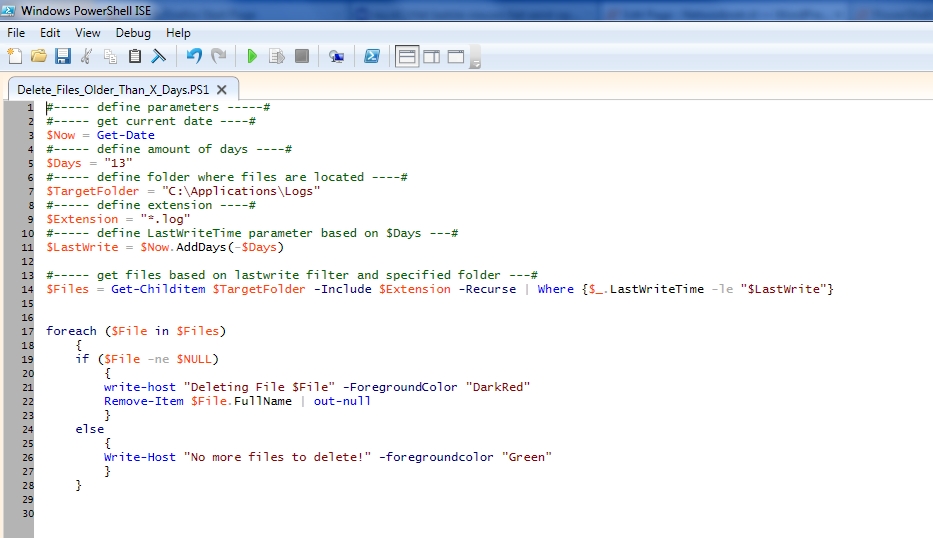
Create new file and name it Delete_Files_Older_Than_X_Days.PS1
I used Windows PowerShell ISE to create and test the new file. Make sure to define your parameter like days, folder and extension. For extension use * to include all files. Before assigning the script to a group policy, logon script or other distribution methods please make sure it works for you!
#----- define parameters -----#
#----- get current date ----#
$Now = Get-Date
#----- define amount of days ----#
$Days = "7"
#----- define folder where files are located ----#
$TargetFolder = "C:\Applications\Logs"
#----- define extension ----#
$Extension = "*.log"
#----- define LastWriteTime parameter based on $Days ---#
$LastWrite = $Now.AddDays(-$Days)

#----- get files based on lastwrite filter and specified folder ---#
$Files = Get-Childitem $TargetFolder -Include $Extension -Recurse | Where {$_.LastWriteTime -le "$LastWrite"}

foreach ($File in $Files)
    {
    if ($File -ne $NULL)
        {
        write-host "Deleting File $File" -ForegroundColor "DarkRed"
        Remove-Item $File.FullName | out-null
        }
    else
        {
        Write-Host "No more files to delete!" -foregroundcolor "Green"
        }
    }
How to run the new script from Command Prompt or PowerShell console?
From Command Prompt run the powershell command with with path and file name of the script.
powershell -command "& 'C:/Applications/Delete_Files_Older_Than_X_Days.PS1'"
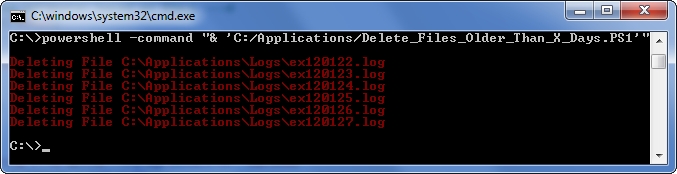
From PowerShell console go to the folder and run the script. For example:
PS C:\Applications> .\Delete_Files_Older_Than_X_Days.PS1

Make sure to test your modified version of this script. This PowerShell script works fine with my Windows environment based on Windows Server 2003 and Windows 7. I hope this post will help you finding your solution on the problem you want to solve. PowerShell options are endless.


Kevin
I have modified the script for it to be able to run under 2012R2 (Powershell 4.0) and send out e-mail messages. Just schedule a task through Task Scheduler to run on a daily basis.
Program/Script: %SystemRoot%\system32\WindowsPowerShell\v1.0\powershell.exe
Argument: C:\path\to\script\removeoldfiles.ps1
Script contents:
#—– define parameters —–#
#—– get current date —-#
$Now = Get-Date
#—– define amount of days —-#
$Days = "7"
#—– define folder where files are located —-#
$TargetFolder = "D:\PATH\TO\FILES"
#—– define extension —-#
$Extension = "*.sql"
#—– define LastWriteTime parameter based on $Days —#
$LastWrite = $Now.AddDays(-$Days)
#—– get files based on lastwrite filter and specified folder —#
$Files = Get-Childitem $TargetFolder -Include $Extension -Recurse | Where {$_.LastWriteTime -le "$LastWrite"}
#—– E-mail parameters
$Messageparameters = @{
Subject = "SUBJECT HERE"
From = "[email protected]"
To = "[email protected]"
SmtpServer = "SMTP.SERVER.ADDRESS.HERE"
}
if ($Files -ne $NULL)
{
foreach ($File in $Files) {
write-host "Removing file $File" -ForegroundColor "DarkRed"
Remove-Item $File.FullName
$Files2 = $Files | Out-String
}
}
else
{
Write-Host "No (more) Files to remove!" -foregroundcolor "Green"
$Files2 = "No files have been removed today!" | Out-String
}
Send-MailMessage @messageParameters -Body $Files2
Ofcourse this could be done in a nicer way, but it works.
Terry
I don't know enough PowerShell to know if I can make a minor adjustment but still have a functional script. I need to delete files (not directories) using a "today – x# of days" AND if all files in a directory meet the delete criteria, I need to be able to leave the newest file in place.
The above looks to handle the delete function to suite my needs. How can I adapt this script to leave the newest file intact?
Appreciate your time and efforts. Thank you!
Terry
Jairo Celis
Kevin, I'm using your modified script, Can you tell me, How can I to create log file of procedure? Please tell me your script with it.
Thank you
David Tolo
How would you make it recursive where it deletes the files in the subdirectories but not the subdirectories themselves?
Also, can you do several different filetype extensions?
Thank You,
David
What is the process of converting the script to a service?
ramesh
How can I delete a line from a file into powershell? if i have one line like 07-JUN-2018,
how could i delete only content of the file.
I tried with remove-item, it removes all file not the content.
Thanks in advance
viknass waran
Hi
Let's say I wanna exclude 1 single file from deletion where can I add it
Tanmay
How we can use for remote server?