
 Hi there! Welcome to my blog. My name is Ivan. I am a Dutch IT Professional working as Principal IT Consultant.
 How to create table of content (TOC) of a SharePoint document library?
Let’s take a SharePoint “Document Library” which has several different sub folders. For example the structure below:
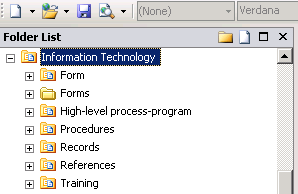
Within these sub folders there are several documents stored. For example within the “Form” sub folder where documents are stored based on word or PDF file types. All sub folders within the “Information Technology” library hold several documents. The challenge I had is to create a table of content page which showed all those sub folders with their document content.
Use out of the box SharePoint blank web part page
I created a new page based on “Blank Web Part Page” and add the “Information Technology” document library which showed all the folders.
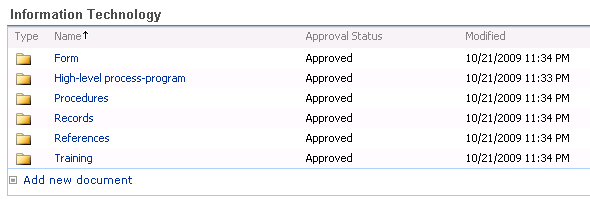
I could change current view and change the “Folders” option to show all items without folders but still this solution didn’t help. I wanted to filter individual “Document Library” sub folders and their content.

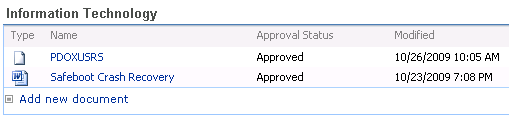
I tried all possible options with this “Information Technology” webpart to filter for a sub folder but nothing which helped me. I learned from Laura Rogers here how to insert a “Data View Web Part” and filter the content within a “Document Library”.
Some steps to achieve this:
- Create new ASPX file and attach your masterpage (Format menu –> Master Page –> Attach Master Page..)
- Create new custom content for PlaceHolderMain

- Drag your “Document Library” in the content area you want to show

- Make sure you are in the table and in the task pane go to “Data Source Details” and click the Current Data Source link.


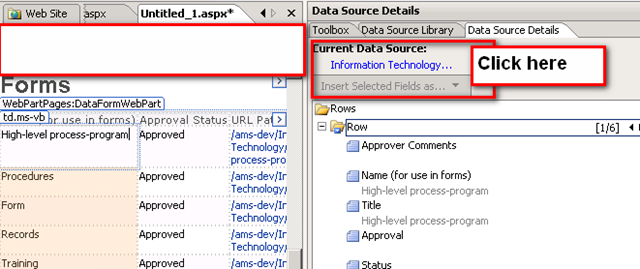
- Change the scope level to RecursiveAll
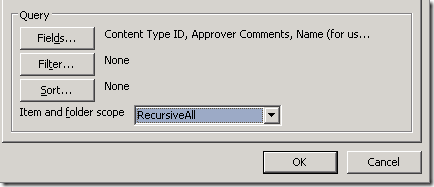
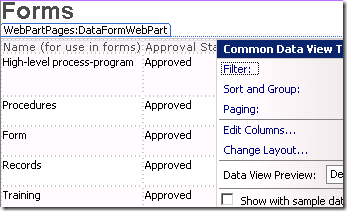
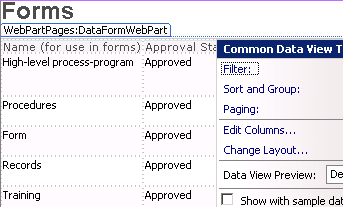
- We are done now and all documents will be shown stored in this “Document Library”. Now we can filter the path for specific Sharepoint sub folders. Click on the chevron of the data view and click Filter.
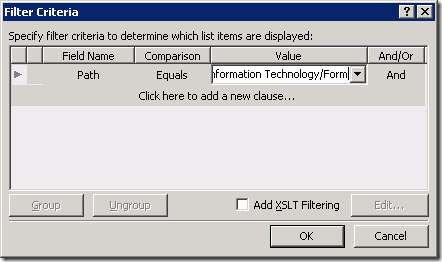
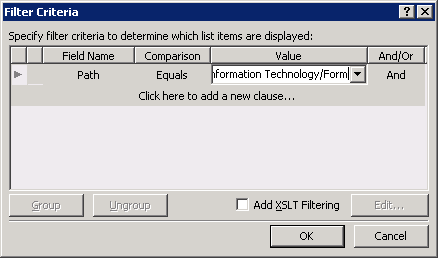
- The Filter Criteria window is shown and you can set all different type of criteria. Enter the sub folder you want to show. In my case the Form folder.
- Save the ASPX file and check it out.
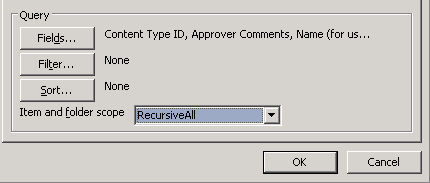
The result:
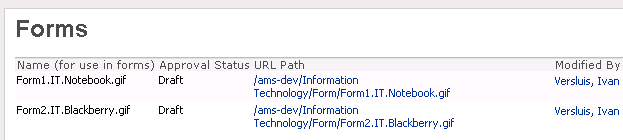
Hopefully by now you get the picture how to customize the data view webpart. You can change all columns and insert hyperlinks were needed.


Tom Hunter
Ivan: I used your technique today and it worked! Thank you for your help…
Tom
Tom Hunter
Ivan: One question: will the Table of Contents be automatically updated as new documents are added using your technique described above?
Tom Hunter
Ivan: another question: what does the RecursiveAll scope property do exactly?
Ivan Versluis
Hi Tom,
Question 1: Yes it will. It is a view based on a document library.
Question 2: RevursiveAll means that it will search all subfolders created in a document library. Without this it will only see the reboot. I used this because I filtered based on path. If not enabled you won’t see anything.
Tom Hunter
Ivan: I have shared documents and several lists within a sharepoint site and I want to list all the .doc and .pdf and .xls documents. I am getting the documents in the document library in my TOC. Is there a way or option to include attachments associated the the Lists?
Tom Hunter
Ivan Versluis
Hi Tom,
I don’t have all the details on your requirements but I think this could be achieved with a custom ASPX page. I have done similar thing on this post with a document library. Sharepoint list is comparable to a document library.
I don’t have access to Sharepoint in the upcoming days but if you can’t figure it out I can give it a try when in the office next week.
Tom Hunter
Ivan: thank you so very MUCH for the response. Does a WF that you have a timer delay in simply process and END after the delay is up or can you have it re-start itself so that it runs daily. I am trying to have a list reviewed daily by a work flow for certain dates to send emails. I am using two work flows that start each other until the each item in the list is revviewed. This is similar to a FOR/NEXT loop in visual basic etc. I got this technique off the Internet as well. The 2 looping workflows are working fine; but, the TIMER workflow delays for the proper amount of time (1 day) and then ends. I need to have it run each day.
Tom Hunter
Ivan: you can ignore my previous comment. I was able to debug and fix the looping wf with the timer delay.
However, I am still in need of an answer on TOC web part on March 14th. That is, how do I get certain file types from a site that has Shared Documents and Lists with attachments?
Lee
I have a problem. I inherited a table within a sharepoint site. I need to share a document from a folder within the site into the table. I can put the hyperlink which points to the document, but I rather “share” that document into the table. I want the process to be as “idiot proof” as possible. Any ideas?