
 Hi there! Welcome to my blog. My name is Ivan. I am a Dutch IT Professional working as Principal IT Consultant.
 Recently I was working to move a virtual machine test network to production. Before bringing this virtual machine into production I wanted to run the latest updates and during that process my virtual hard disk become full. When I created this virtual machine I configured the initial disk space 6GB.
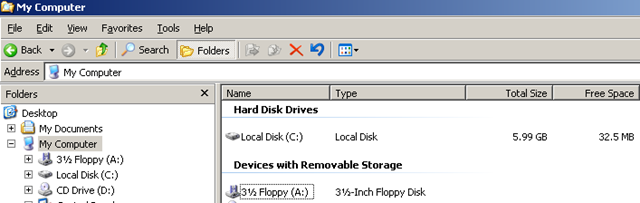
VMWare ESX allows you to extend the virtual disk size on a running virtual machine.
How to extend the virtual disk size?
Right click on the virtual machine in the VI cleint; choose settings and go to “Hard Disk 1” and type new disk size. Click OK. 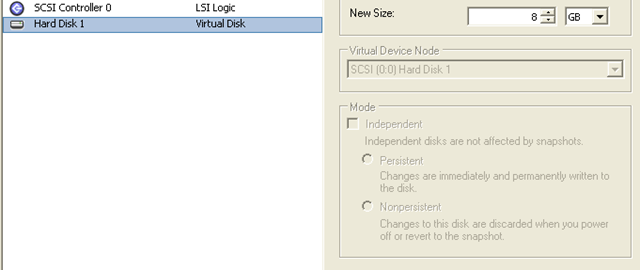
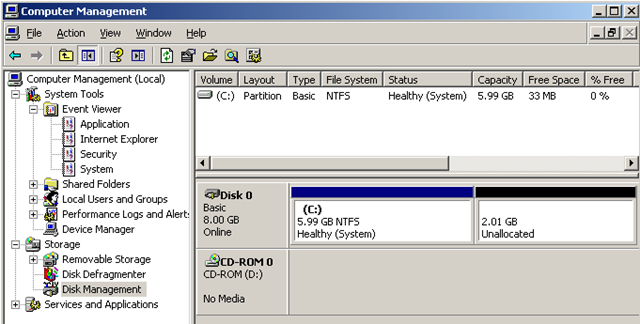
Example of my new Disk Configuration in “Disk Management”. To extend the virtual disk we need to go to diskpart and extend the volume.
I opened command prompt and opened diskpart; selected the volume and run extend.
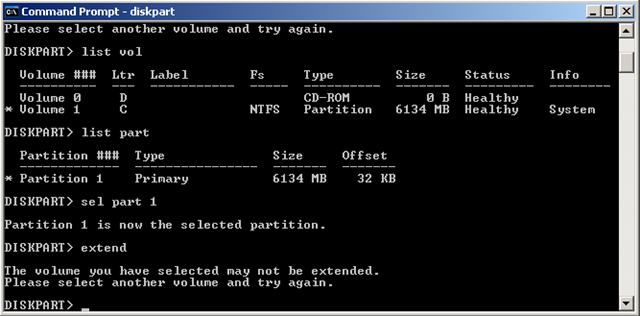
My virtual hard disk was full and I was not able to extend my basic disk with the additional 2GB. I found the following two solutions how to extend the hard disk.
Solution 1
Thanks to Kalpesh Prajapati post I was able to find a solution to my problem. Follow these steps to extend your virtual machine basic hard disk:
- Shutdown the virtual machine
- Extend the virtual disk size
- Add the harddisk to another virtual machine and start it up (second virtual machine)
- Open command prompt and start diskpart.exe
- list volumes and select the volume with the disk problem
- extend the disk
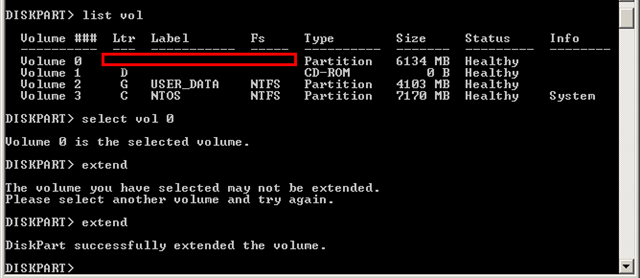
Make sure the volume has a drive letter assigned otherwise same warning will be returned. Virtual machine was started again without any problems and two additional gigs of disk space.
Solution 2
Arne Fokkema posted another solution to extend a basic disk. It should be easier if you download the additional ExtPart.exe tool from Dell. Extend the OS disk the easy way (ExtPart.exe)
ExtPart.exe C: 2048
Both solutions worked fine and it solved my problem with the virtual machine!


jean-jacques
Excellent article, the limitation with this is system partition/drive : we can not use diskpart in this case; I saw alot of articles, and I found one in http://www.ntsysv.com with a video which was very helpful.
thank you again, I’ll be back for further reading.
Heero
ExtPart doesn’t work on Server 2003 64bit…so fail on extending primary C drive basic partition…