
 Hi there! Welcome to my blog. My name is Ivan. I am a Dutch IT Professional working as Principal IT Consultant.
 I personally prefer to install CentOS as my linux distribution. Today I needed to change the hostname of my virtual guest machine running CentOS.
How to change hostname of a CentOS system?
There are several ways to do that but I am using the old way. VI is my friend and still working. I am using a remote SSH session to one of my virtual machines but you can perform same steps from the console.
- Login with putty.exe
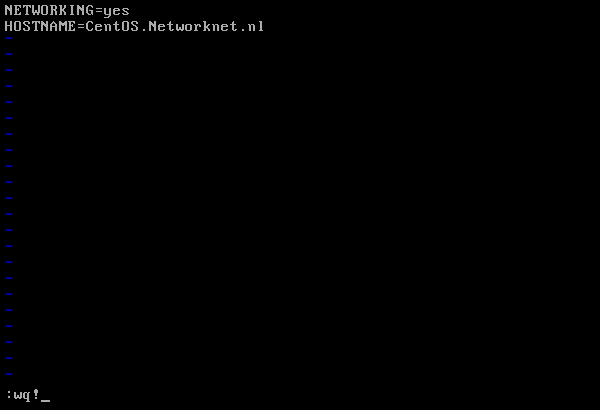
- Goto /etc/sysconfig/
- Type vi network
- Press i on the keyboard and change the HOSTNAME to your preferred servername
- Press ESC on the keybord
- Save the configuration by :wq!
- Log off or reboot
That’s all!


Umarzuki
# system-config-network
and change hostname under DNS tab, logout then login again would do also.
tijn
You don’t need to reboot, just logout and login.
TheBigK
echo “newhostname” > /proc/sys/kernel/hostname and you dont need to reboot. Reboot is just for new kernel ;D
Pierluigi Vernetto
I have changed hostname, on a CentOS 5.3 on VMWare player, but after the change the startup becomes extremely slow, even opening Terminal takes 30s…. I have made sure the entry in the DNS tab in system-config-network is correct, and restarted…. if I restore the previous hostname value (bagvapp) the respose times become normal again…
anybody experiencing the same problem?
Pierluigi Vernetto
ah ok I forgot to add the new hostname in the 127.0.0.1 entry in the hosts file…
the procedure is described here:
http://javamonamour.blogspot.com/2009/06/centos-change-hostname-and-ips.html
nick
/etc/init.d/network restart will do after change the hostname. 🙂
Bob
And you can also type as root in console: “setup” and then go to “Network Configuration” and edit the DNS config.
And you may want to check your /etc/hosts
claudio
Thanks guys, but the TheBigK’s solution don’t persist before restart.
The Umarzuki and Bob solutions are OK.
Muchas gracias, Thank to all.
Sorry for my bad english.
claudio
don’t persist “after” restart… is the correct form…
Sorry again.
Good luck.
tommy
no need to restart :
hostname -v yourhostname
HostName To IP Web Service
This is a nice guide.
Most control panels have GUI to do this for novice users.
michael
edit /etc/sysconfig/network then do service network restart.
Abaid
Thanks MAN its works!!!
kaintze
I’m running CentOS under a VPS and writing to /proc/sys/kernel/hostname is not allowed (not even as root).
I followed the link in Pierluigi’s post and ended up adding this line in /etc/sysconfig/network
HOSTNAME=”plain.domainname.com”
This worked for me and the setting persisted after reboot. Full article here:
http://www.ducea.com/2006/08/07/how-to-change-the-hostname-of-a-linux-system/
Cheers!
helpdeskdan
kaintze’s instructions are good, but don’t forget to change /etc/hosts!
new
thank u.
it work!.
Hosting en Colombia
Setting a new VPS server and it worked like a charm
Thanks
RapidSpeeds
I needed this for a customer, thank you very much.
Christian
Thank you, it works!
Adrian
I to get slow boot times after doing a “hostname example.com” I do not recommend “trying” commands to see if they “worked” or not. These are sensitive settings that have a great impact on performance.
TGWALT
If you don’t “try” commands, how will you ever accomplish what you’re trying to fix/change? Apparently you also don’t pratice what you preach since you “tried” it as well and I’m sure have “tried” other commands before too……silly rabbit, *nix aren’t for kids
MOMO
ADRIAN, I do not believe your issue is the hostname change. you might other issue going on.
changing the hostname should not have any effect on performance….
some dude
worked fine, thanks a lot!
Supraveghere Video
michael solution is the best and easy to do. After you can check /etc/hosts to see if the new hostname is there or not. If it’s not, just modify the hostname file with the new hostname. That’s it, no need for reboot.
haji
thank you .
kdude63
Why not use nano? :3
varun kumar
I have a centos6.0 system, suddenly it hanged and when did reboot and log in with user root then i get no any data on my desktop of root, When i open Terminial then i get
-bash-4.1#
how can i recover all data and change terminal shell
-bash-4.1 # to [root@dhcppc13 ~]#
please help me
yea
nano > vi
lucas branco
perftect !!! thank you!!!
Juno David
All you have to do is give the following command accompanied with the new hostname…
hostname -v server.example.com
ac
My CentOS came up initially with a wrong name that it pulled from DNS that originally had the IP that it picked up via DHCP. I changed this name in hosts, network, dns, but still it shows the old name at root@wrongname.
Lynchburg Realtors
Hi, I check your blog regularly. Your story-telling style is witty, keep up the
good work!
Lynchburg Virginia Realtors
Appreciating the time and effort you put into
your website and in depth information you present.
It’s great to come across a blog every once in a while that
isn’t the same old rehashed information. Fantastic read!
I’ve saved your site and I’m adding your RSS feeds to my Google account.
Download ebooks
Magnificent beat ! I would like too apprentice while you amennd youjr web site,
how can i subscribe forr a blogg website? The account aided me a acceptable deal.
I had been a little bit acquainted off this your broadcast
provided bright clear concept