
 Hi there! Welcome to my blog. My name is Ivan. I am a Dutch IT Professional working as Principal IT Consultant.
 While working with Windows Live Writer I got the following error when publishing a post. I have no idea why image I included in Windows Live Writer is not working and process stops with “Image Upload Not Supported by Weblog” error message.
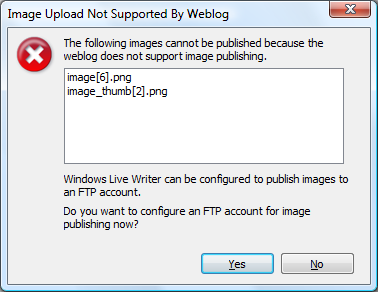
I did some reseach on google and found the following post http://wordpress.org/support/topic/102352 where the problem was discussed. For me this was not really satisfying to change any PHP code. I configured my FTP account setting and tried to save the post again. This time image upload worked fine!
How to configure Windows Live Writer to upload images to an FTP server?
Some blog services don’t host images. If you use one of these services and you want to include images in your blog posts, you must contract with an ISP or hosting service to host your images on an FTP server, and then link to the images from your blog post. To change your Windows Live Writer image settings to upload images to an FTP server:
- Click Start, click All Programs, click Windows Live, and then click Windows Live Writer.
- If you use Writer with more than one blog, on the Weblog menu, select the blog that you want.
- On the Weblog menu, click Edit Weblog Settings.
- On the Images tab, click Upload images to an FTP server, and then click Configure FTP.
- Complete the following settings:
FTP hostname: The name of your FTP server.
Username and Password: The user name and password for your FTP account.
Publish images into this folder: Include the full path to the folder on the FTP server. To find the path, click the Browse button.
URL of image publishing folder: The web address of the folder where people can view your images. The address should start with http://, not ftp://.
Click OK, and then click OK again.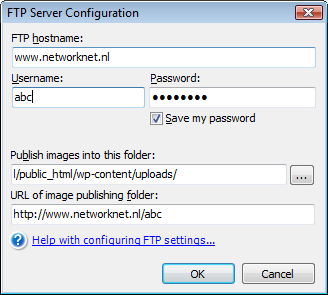


Leave a comment