MD5: Find a corrupted file after a network copy
Last night, I copied a Windows Server 2008 R2 image to my central site. I had exported the virtual machine as an OVF template. Copying the 3 GB image over the network took almost five hours.
Because of the image size, I used 7z to split it into 50 MB files. I copied the directory to the storage server and started extracting it.
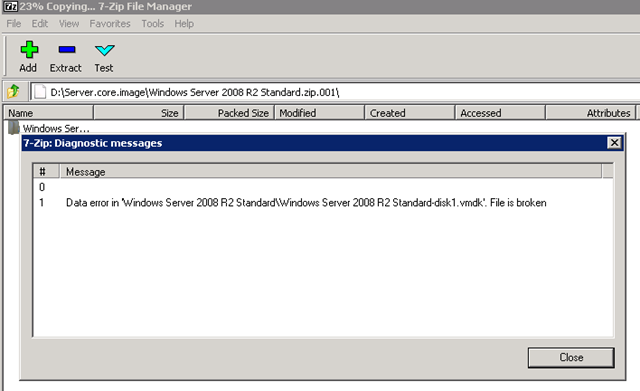
The operation stopped at 23%. All the files were 50 MB, and I could not find one smaller than the others. I had two choices:
- Copy everything again.
- Calculate MD5 checksums for the files in the source directory and compare them with the destination.
I chose the second option. I found a small console utility called exf.exe on exactfile.com and used it to create a digest file for the source folder.
Compare the source and destination
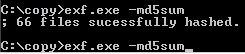
The exf.exe –md5sum command took a couple of minutes to generate the digest file. I then copied exf.exe and exactfile.md5 to the destination folder.

After running exf.exe –c extractfile.md5, the MD5 checksum failed for file number 16. The file was the same size as the others: 512000KB.

I copied file 016 over the network again and restarted the extraction. It took me about 15 minutes to find the solution and copy the one 50 MB file needed to resolve the problem.