VMware: Install Windows 7 from USB media in Workstation
In my previous post I created a USB installation disk with the Windows 7 USB DVD Download Tool. Now I am going to use the USB flash disk drive to install my systems. I can also use this media to install my virtual machines. VMware Workstation 6.5 and earlier do not support booting from removable USB disks, but there is a workaround.
Start VMware Workstation and open the properties of your VM. Create a new virtual hard disk using the physical partition of the inserted USB disk. The following screenshots show how I did this:
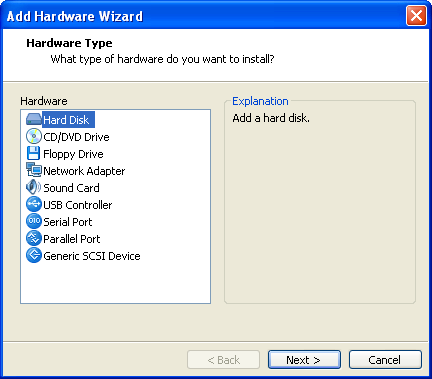
Open the Add Hardware Wizard and add a Hard Disk.
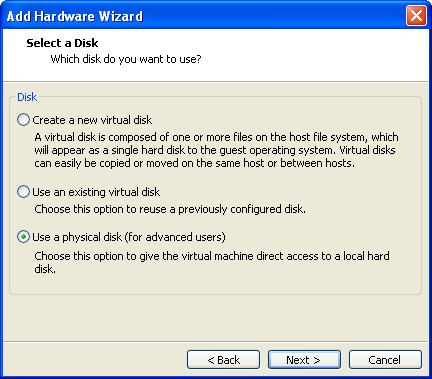
Select “Use a physical disk”.
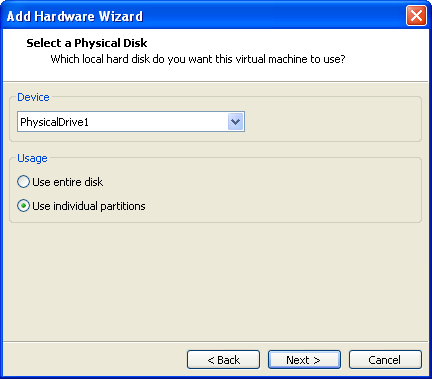
Select the USB flash drive device “PhysicalDrive1” and “Use individual partitions”.
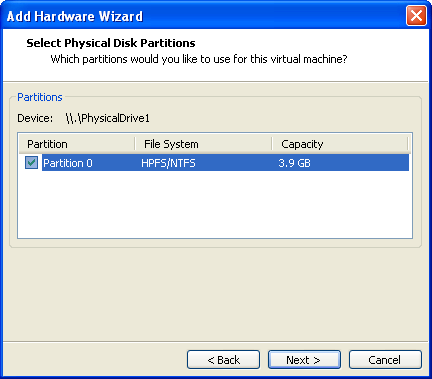
Select the partition.
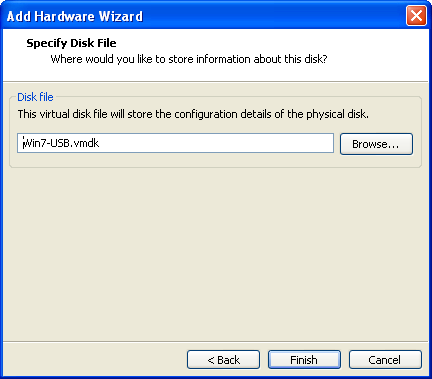
Specify the disk file and click Finish to complete the virtual disk configuration.
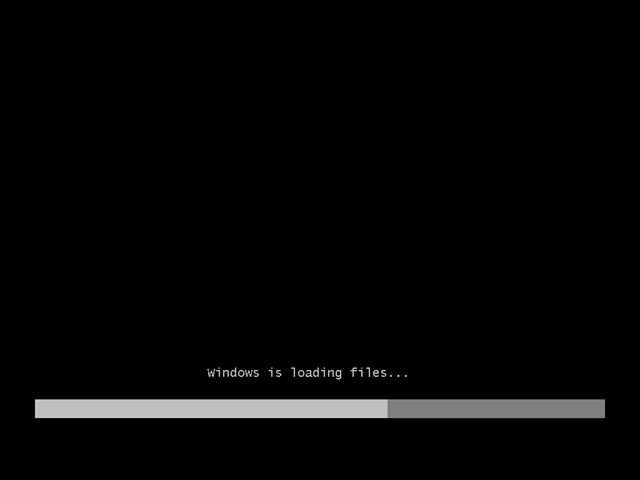
Install Windows 7
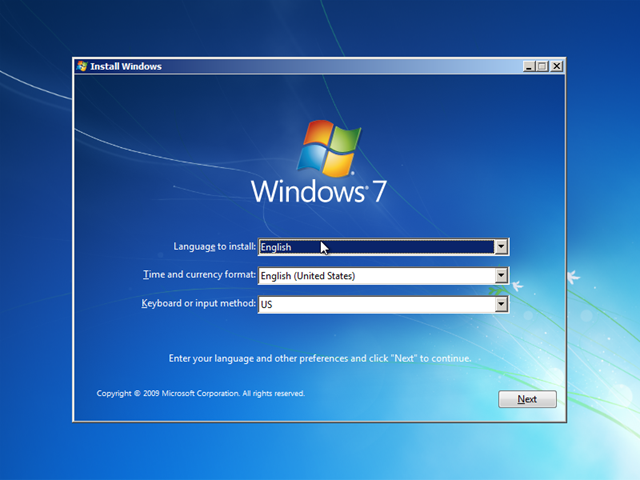
Select the language options.
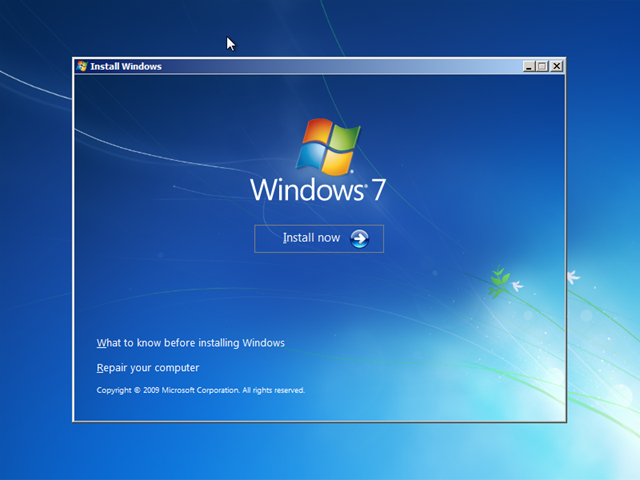
Click Install now.
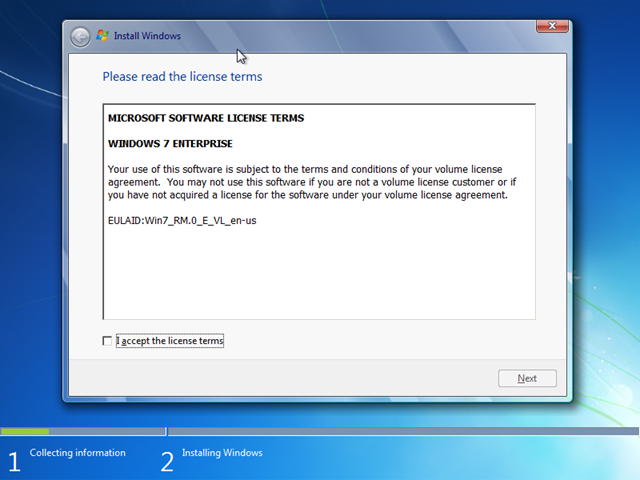
Accept the license terms.
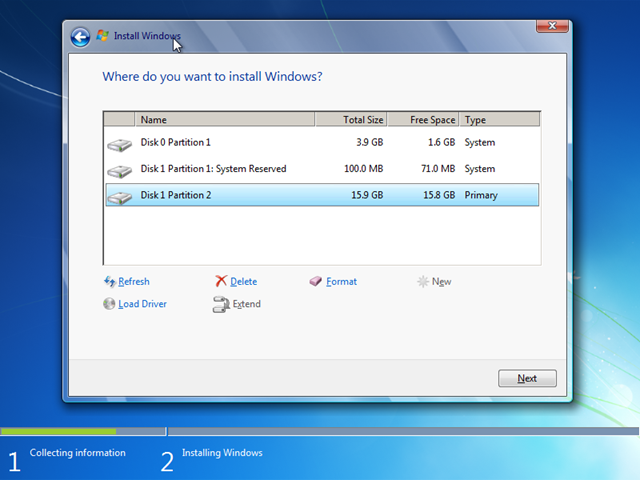
Make sure the correct partition is selected.
The installation of Windows 7 will start.
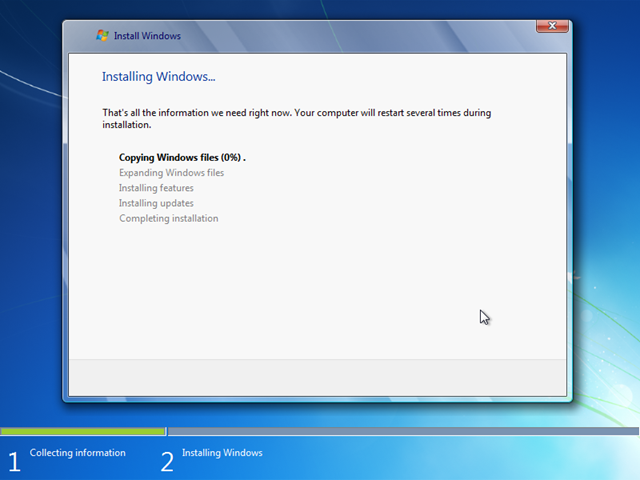
With VMware Workstation, I was able to use the USB flash drive to install Windows 7. Burning ISO images to CD/DVD is becoming less popular, and I increasingly prefer using USB drives.
Related posts
- VMware: Back up and migrate a small vCenter database
- VMware: Upgrade ESXi 4.0 to 4.1
- VMware: First impressions of Workstation 7
- VMware: VirtualCenter Server service fails to start
- VMware ESX: Set a static MAC address
Show 27 more posts
- VMware ESX: Blue screen during Windows XP installation
- Windows 7 Beta: First impressions and VMware Workstation
- VMware ESX: Hyper-V and memory overcommitment
- Dutch VMware User Group Event 2008
- VMware Workstation: High-speed USB 2.0 support for a VM
- VMware ESX: Extend a Windows Server 2008 basic volume
- VMware ESX: Extend a full virtual hard disk
- VMware ESX: Configure a Service Console IP address
- VMware ESX: SSH remote management
- VMware ESXi 3.5 is now free
- VMware Workstation 6.04: Unrecoverable error on Linux x64
- ESX: Create port groups and assign VLANs with esxcfg-vswitch
- VMware Premium Support and a Linux Live CD
- VMware Workstation 6.5 beta
- VMware VMDK: Failed to lock the file
- VMware Server: 511 vmware-serverd service is not running.
- VMware Converter 3.0.2 Update 1
- VMware ESX3i: identify Cisco switch ports with CDP
- VMware ESX3i: monitoring server health
- VMware Player: a CMD startup script
- CactiEZ 0.3: Install the appliance in VMware Workstation
- VMware Tools: Mouse tracking issue
- VMware: ESX Server in Workstation 6 screencast
- VMUG.nl: Verslag van het Dutch VMware Usergroup Event 2007
- VMware: Install ESX Server inside Workstation 6
- VMUG Event 2007: Nieuwegein, 7 December
- VMware Workstation 6: Team tutorials
15 comments
Comments from the original WordPress site, kept read-only.
Didn't work. FUBAR to the MAX.
Dear EBM,
Which steps doesn't work out for you? Please provide me some more details so I can have a look myself.
Most important step is that you have a working Windows 7 USB installation disk working before starting to work on VMware. Make sure the USB disk is formatted from Windows7 and partition on the USB drive is set to active. Copy all files from the Windows 7 ISO/DVD and paste them on the USB drive.
Boot your pc from USB and make sure this new flash drive is working.
If that is working go to VMWare and repeat my steps. Make sure the flash drive is inserted and when choosing a physical drive the right partition is selected.
Ivan
Dear Ivan,
I apologize for my somewhat terse & well...ignorant remark above. As it turns out, I "missed" or rather ignored your advice to use the 7 USB/DVD Download Tool. I've attempted to use it to create a Win 8 Developer Preview DVD & install it (8) on workstation 8, but have gotten the dreaded "A required CD/DVD device driver is missing" error with using 4 different ISO's DLD'd direct from MS, using 3 different burning tools (Native 7 w/ the DVD/USB tool, Nero Burn Rom 11 Trial ver & ImgBurn) at varying speeds...SHAH 1's check out, etc... In other words the failure was not due to a corrupt ISO dl and/or DVD burn...none of which were successful, though each ISO I used installed FLAWLESSLY in Workstation 8.
Not being able to find an answer on the net (all canned responses saying due to corrupt dl/burn) lead to my frustration, which lead to my ignorant comment. I will attempt this with the 7 USB/DVD tool & report back on my success/failure.
Many thanks for your prompt attention & courteous reply, I was pleasantly surprised to receive such given the date of your OP (2 years ago)
Thank you once again.
"EBM"
A thought suddenly occured...Is this method supported in Workstation 8 and/or Player 4?
Hi EBM,
You are welcome. While reading your second reply couple of times I am still not sure if the USB media disk has been setup properly.
Please let me ask some more questions:
- What do you want to achieve?
My reason of writing this post is that I could use my USB flash drive I created to stage physical systems with the new Windows 7 OS at that time. Now I have customized Windows PE boot image where I can install and test my deployment process with help of VMWare Workstation.
- I learned you are using the Windows 8 preview to install that with USB? I am not sure if the Win7 Download tool is compatible with Win8. (Correction there is another post here talking about this http://www.redmondpie.com/how-to-make-windows-8-bootable-usb-flash-drive-the-easy-way/)
- I am using VMWare Workstation 6.5. I don't see there is a problem if you are using a new VMWare Workstation 8 version. Even it could support boot from USB. Not sure but I can imagine VMWare development has continued since that time.
Before even touching VMWare Workstation please make sure the USB installation drive is working on a physical system.
I have some time in the upcoming week so I may give it a try myself and update this post.
Hello Ivan,
Thank you for following up. I will attempt to clarify what it is I wish to accomplish, while doing so as briefly as possible.
Let me start out by stating that I am not an IT pro, my skillset is that of an upper above average-lower advanced HOME user. What I initially set out to do is actually a process that is no longer *officially* supported by MS as of Windows 7--that is the process of slipstreaming the installation media to include SP's updates, etc. I have successfully created, tested and deployed a "Vanilla" SP1 slipstreamed install DVD using a 3rd party tool--RT Seven Lite Config Tool: http://www.rt7lite.com/rt-se7en-lite-forum/listcat.html
Installing from USB was not what I originally set out to do, what I was trying to accomplish--and have successfully done so since my last post-- was to create an updated DVD with Post SP1 Updates, Hotfixes & IE 9 integrated. I encountered the aforementioned "driver is missing" error on several attempts to test install via DVD on VMwware & I only made mention of Windows 8 because I encountered the same error EVERY time I tried to install via DVD using the Win 7 USB/DVD Tool & EVERY attempt to install via ISO was successful on both 7 & 8---which lead me to the false impression that the 7 USB/DVD tool was at "fault". I have since learned that my question posed on my third post "Is this method supported in Workstation 8 and/or Player 4?" was the real "culprit" ...enabling legacy emulation in Advanced CD/DVD serttings led to a successful install via DVD without a hitch, and booting to the physical harddrive on my computer successfully opened the installation GUI (is that what it's called?)
The USB boot issue is moot as it appears my laptop does not support USB FDD boot. I did use the 7 tool to format & copy onto an 8gb flash drive, it shows as healthy, active & primary in disk mgmt. Booting to the BIOS showed "USB FDD:" listed under the boot tab, but nothing on the "right side" & quite frankly having told you I am just an average user, the whole BIOS thing is a bit out of my league and changing anything much more than the boot order is intimidating to me LOL.
Thank you again for your attention to this, and again I apologize for my rather rude comment .
Regards
EBM
...Disregard my comment re: "my laptop does not support USB FDD boot" rookie mistake by me, thought "FDD"= Flash Disk Drive, it's actually FLOPPY disk drive.
I have successfully created a Win 7 VM via USB boot/install using your instructions, thank you. The Post SP 1 updates, hotfixes & IE 9 all integrated successfully also, fwiw.
Regards
"EBM"
Hi Ivan,
Thanks for the post, it really helped me a lot!
I found a similar way is to add a new CD/DVD drive instead of a HDD drive. Be sure to have the first CD point to a WinPE iso, the second one to your self built installation .iso, which can be an .iso located on the host harddrive. Once WinPE is started, the WinPE drive is d:\, and the second CD/DVD drive is e:\. Just type e:\ at the command prompt, and then setup.exe. At setup, the only possible drive to install to is the virtual disk of the virtual machine.
It saves some time creating a USB device. Ofcouse this is only interesting if you are not planning to install on other host machines.
Congrats with your baby!
Bleeksel
And by the way: you don't need to worry about making any drive bootable...
i am a user of windows8...now i wanna install windows7 inside win8 using vmware....somebody please help me
i tried this with vmware workstation 12, followed every step to the end, new system powered up without any problem, until I removed the 2nd hard disk - the physically mapped usb drive - from the system, then it couldn't find the bootdisk anymore.
is there a way to fix this?
thanks.
o clarify how i removed the 2nd hard disk. i powered off the guest OS first, then removed the 2nd disk, then power on to firmware and ensure the installed disk was the first one to boot, finally booted it up again, but it couldn't find the boot disk.
tried this three times but still no fix :(
nice work thank Ivan
Work BRO, work, THX, THX, THX *-* WORKKKKKK
For many people, troubleshooting computer issues is mysterious and
confusing. If you are looking to get a machine that helps you
handle complex graphics and design tasks,
then you can never make a mistake with the Apple Mac
Pro one. 0 GHz Intel Core 2 Duo processor provides fast processing speed (said to be
half a dozen times superior to its predecessors) and the impressive graphics card that may be the NVidia Ge -
Force 128MB caters relatively well to accelerate the gaming experience and for graphics-intensive work.