VMware ESX: Extend a full virtual hard disk
I was recently preparing to move a virtual machine from a test network into production. Before doing so, I wanted to install the latest updates, but the virtual hard disk became full during that process. I had initially configured it with 6GB of disk space.
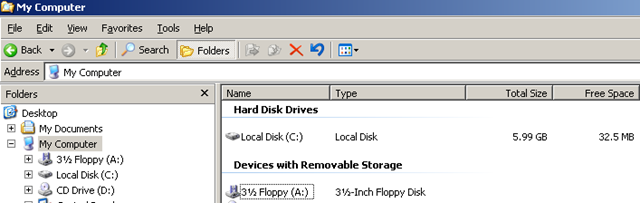
VMware ESX lets you increase the virtual disk size while a VM is running.
Increase the virtual disk size
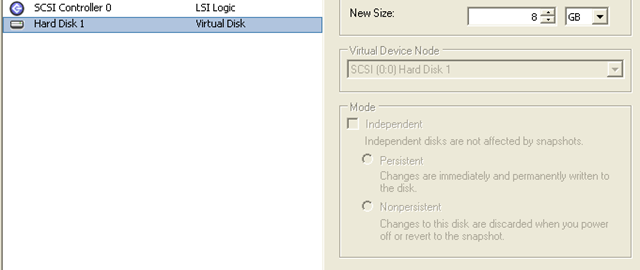
Right-click the VM in the VI client, choose settings, open “Hard Disk 1” and enter the new size. Click OK.
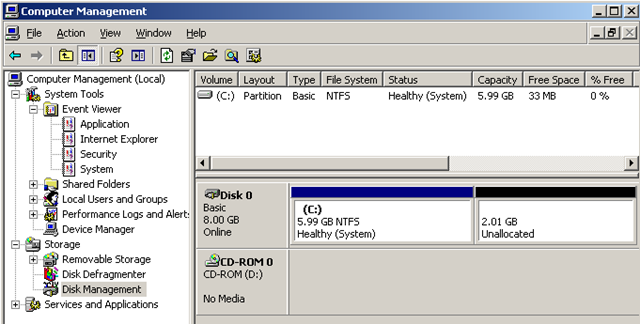
This is the new configuration in “Disk Management”. The next step is to extend the volume with diskpart.
I opened Command Prompt, started diskpart, selected the volume and ran extend. It returned:
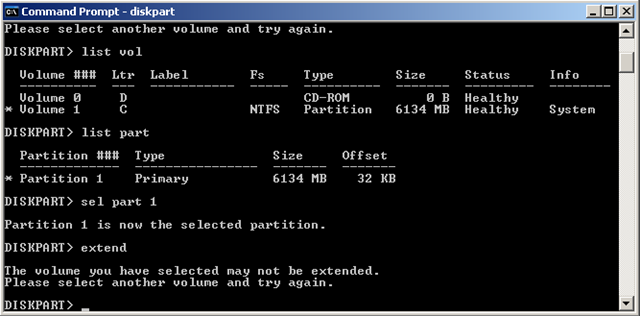
The disk was full, and I could not extend the basic volume into the additional 2GB. I found two solutions.
Solution 1: Attach the disk to another VM
A post by Kalpesh Prajapati helped me find a solution. Follow these steps:
- Shut down the virtual machine.
- Increase the virtual disk size.
- Attach the hard disk to another VM and start that second VM.
- Open Command Prompt and start diskpart.exe.
- List the volumes and select the one with the disk-space problem.
- Extend the disk.
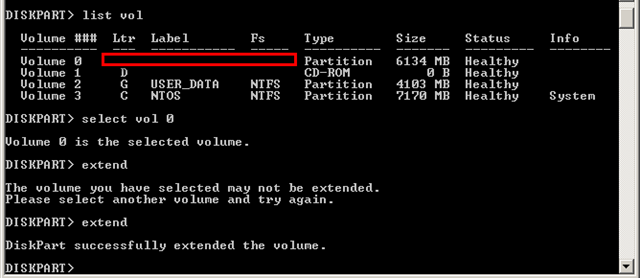
Make sure the volume has a drive letter; otherwise, the same warning is returned. The original VM started again without problems, with an additional 2GB of disk space.
Solution 2: Use ExtPart.exe
Arne Fokkema posted another solution for extending a basic disk. It should be easier with Dell’s ExtPart.exe tool: Extend the OS disk the easy way (ExtPart.exe).
| |
Both solutions worked and solved my virtual machine’s disk-space problem.
2 comments
Comments from the original WordPress site, kept read-only.
Excellent article, the limitation with this is system partition/drive : we can not use diskpart in this case; I saw alot of articles, and I found one in www.ntsysv.com with a video which was very helpful.
thank you again, I'll be back for further reading.
ExtPart doesn't work on Server 2003 64bit...so fail on extending primary C drive basic partition...