Exchange 2007: Migrate an SSL certificate to Windows Server 2008
With help from Telnetport25, I finished migrating an SSL certificate to my new Windows Server 2008 VM running Exchange 2007 SP1.
Export and import the certificate
- Log in to the old Windows Server 2003 machine hosting the OWA front-end role.
- Start MMC, add the Certificate Snap-In and choose the Computer Account.
- Open Personal/Certificates and locate the SSL certificate assigned to IIS. Right-click it, open All Tasks and choose export. Select the appropriate options, such as the certificate path, assign a password and save the PFX file to “My Documents”.
- Copy the PFX file to the Windows Server 2008 Client Access Server.
- Log in to Windows Server 2008 and add the Certificate Snap-In to a new MMC console for the Computer Account.
- Open Personal/Certificates, right-click, open All Tasks and choose Import.
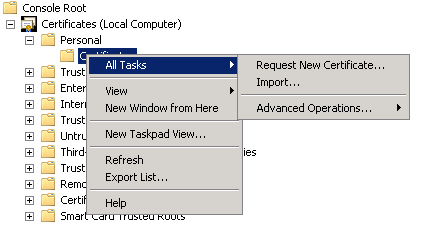
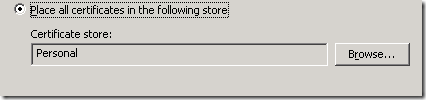
Locate the PFX file, enter the password and select “Mark this key as exportable” to allow future certificate migrations. Place the certificate in the Personal Store.
Enable the certificate for IIS
Open the certificate’s Details tab. Locate the Thumbprint field, select its value and press CRTL-C to copy it.
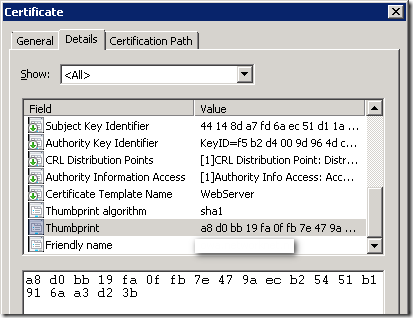
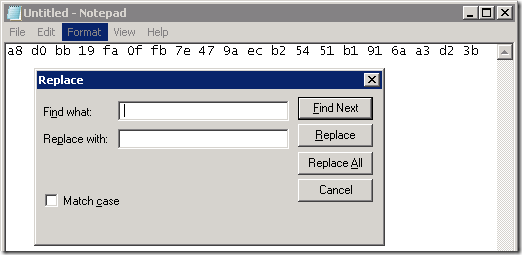
Paste the value into Notepad and use CRTL-H to remove the spaces. In “Find what”, press the space bar and click Replace All.
- Copy the Thumbprint.
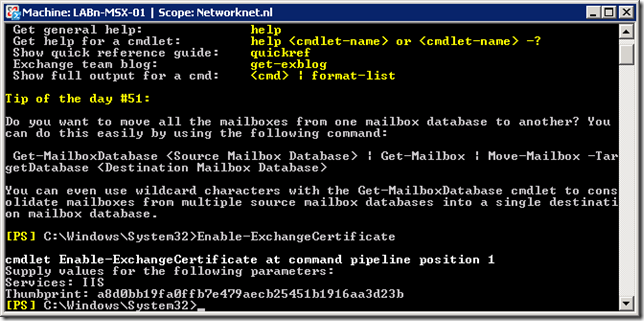
- Open Exchange Management Shell and run Enable-ExchangeCertificate.
- Enter IIS for Services and paste the copied value into Thumbprint.
Configure and test OWA
Open Exchange Management Console, go to Server Configuration / Client Access, select the server and open owa from the Outlook Web Access tab.
Enter the External URL for the SSL certificate and DNS, for example https://webmail.domain.tlk.
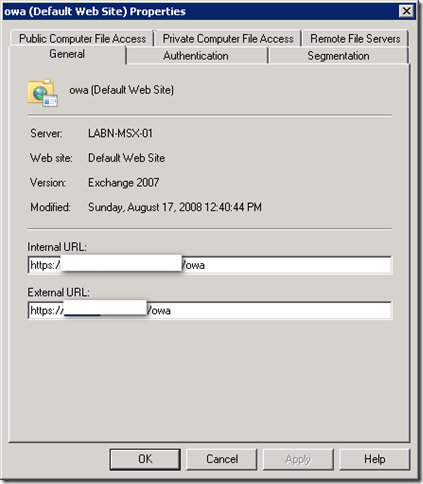
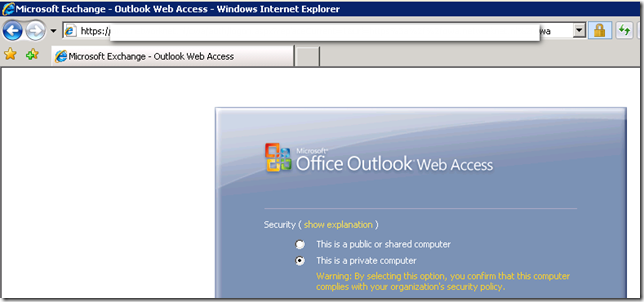
Click OK. You are now ready to test the configuration. Open IE and test the OWA role, and review the NAT and firewall rules.
Related links
- Enable-ExchangeCertificate
- Exporting Existing SSL OWA Certificates from Exchange 2003 FES to Exchange 2007 SP1 CAS on Windows 2008…
1 comment
Comments from the original WordPress site, kept read-only.
Exactly what I needed. Thanks for this!