File server: Migrate Windows shares
When migrating a Windows file server, you can recreate its shares or migrate them from ServerA to ServerB. Sometimes recreating them is the only option, but usually you want to retain the existing shares. A script can help.
Microsoft’s KB125996 covers these scenarios:
- Reinstall Windows over an existing installation (a clean install, not an upgrade).
- Move all of your data drives from one server to another.
- Install Windows to another folder or drive on a computer that already has Windows installed.
I am performing a clean installation of an application server that needs several file shares. I do not want to recreate them manually, so I am using the following steps.
Export the shares
Verify which shares you want to migrate and make sure their drive-letter locations are the same on both servers.
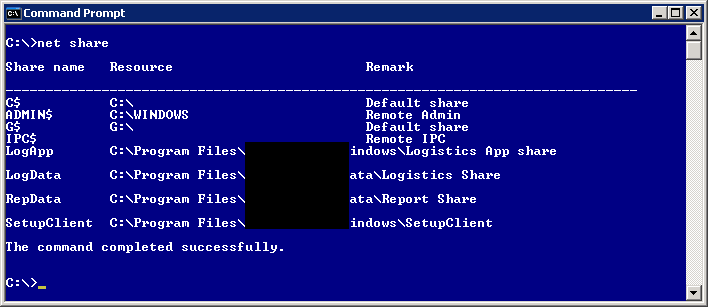
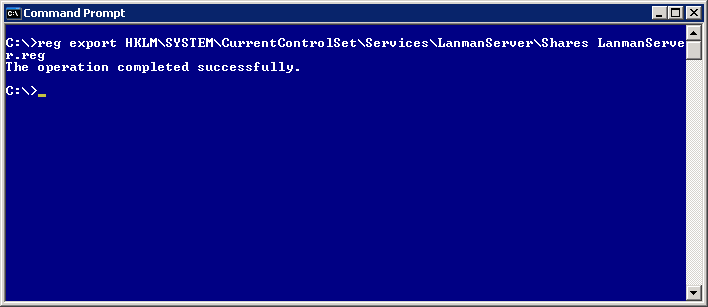
Export the Shares key from HKLM\SYSTEM\CurrentControlSet\Services\LanmanServer\Shares:
| |
Import and verify the shares
Make sure the users and groups still exist in the domain. When migrating from DomainA to Domain B, recreate all users and groups. Copy LanmanServer.reg to ServerB and import it:
| |
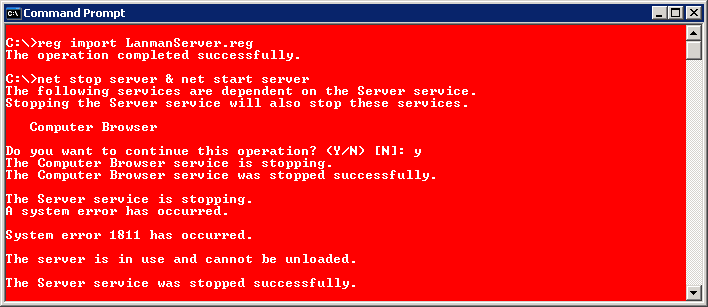
Reboot the file server and verify the shares with “net share”. Also check the System Event Log for warnings or errors.