Networknet archive Blog

McAfee: Web Gateway for Hyper-V – Part 2

Originally published

After creating, installing and testing Web Gateway on Hyper-V in Part 1, I started planning a global deployment. The Hyper-V hosts were spread across multiple sites with a standardized AD site naming convention. I created a PowerShell script to automate the initial steps. With the SCCM agent installed on every host, I could use SCCM to deploy the ISO file and create the VMs for the migration.

The script builds on Part 1 and performs the following tasks:

  • Reads the AD site to generate the VM name.
  • Creates a VM based on the minimum Web Gateway requirements.
  • Configures the network interfaces and assigns VLANs.
  • Uses the host's global network settings to assign static MAC addresses.
  • Starts the VM.

Create the Web Gateway appliance

PowerShell30 lines
 1
 2
 3
 4
 5
 6
 7
 8
 9
10
11
12
13
14
15
16
17
18
19
20
21
22
23
24
25
26
27
28
29
30
#Get AD site
$ADsite = [System.DirectoryServices.ActiveDirectory.ActiveDirectorySite]::GetComputerSite().Name
Write-Host $ADsite
#Generate name based on AD site
$MWG = $ADsite+"-MWG-1001"
Write-Host $MWG

#Create New VM
$PathOS = "E:\"+$MWG+"\"+$MWG+".vhdx"
New-VM -Name $MWG -Path "E:\" -NewVHDPath $PathOS -NewVHDSizeBytes 80GB -Generation 1 -BootDevice CD
Set-VM -Name $MWG -ProcessorCount 2
Set-VM -Name $MWG -MemoryStartupBytes 16GB
Set-VMDvdDrive -VMName $MWG -Path "E:\Software\mwgappl-7.6.0.1.0-20505.x86_64.iso"

#Configure network interfaces
$MWG | Get-VMNetworkAdapter | Connect-VMNetworkAdapter -SwitchName "vSwitch"
Rename-VMNetworkAdapter -VMName $MWG -Name 'Network Adapter' -NewName 'eth0'
Set-VMNetworkAdapterVlan –VMName $MWG -VMNetworkAdapterName 'eth0' –Access –VlanId 1234
Add-VMNetworkAdapter –VMName $MWG -SwitchName "vSwitch"
Rename-VMNetworkAdapter -VMName $MWG -Name 'Network Adapter' -NewName 'eth1'
Set-VMNetworkAdapterVlan –VMName $MWG -VMNetworkAdapterName 'eth1' –Access –VlanId 4567

#Set static mac address based on current global network settings
$MacAddressMinimum = Get-VMHost
$MacAddressMinimum = $MacAddressMinimum.MacAddressMinimum
$MWGMAC = $MacAddressMinimum.Substring(0,10)
Get-VM -name $MWG | Get-VMNetworkAdapter
Get-VM -name $MWG | Get-VMNetworkAdapter -Name 'eth0' | Set-VMNetworkAdapter -StaticMacAddress $MWGMAC"60"
Get-VM -name $MWG | Get-VMNetworkAdapter -Name 'eth1' | Set-VMNetworkAdapter -StaticMacAddress $MWGMAC"61"
Start-VM $MWG

The script was saved as Create-NEW-MWG.ps1 in a shared folder accessible to SCCM. The next step was to create the SCCM components for deployment to the Hyper-V hosts.

Create the SCCM package

Create a folder on the server and copy Create-NEW-MWG.ps1 and the ISO file into it. These are the two package files:

SCCM-package-folder

Set the package's Data Source to that folder:
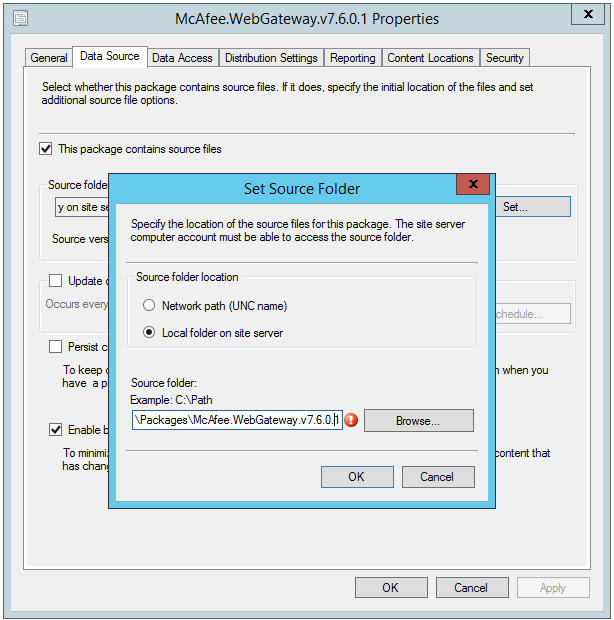
SCCM-package-properties

Create the SCCM task sequence

I created an operating system deployment task sequence with two steps: copy the ISO to the Web Gateway installation-source folder, then run the PowerShell script.
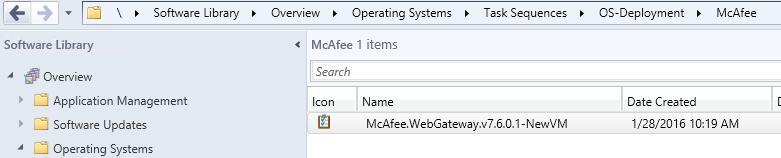
SCCM-tasksequence

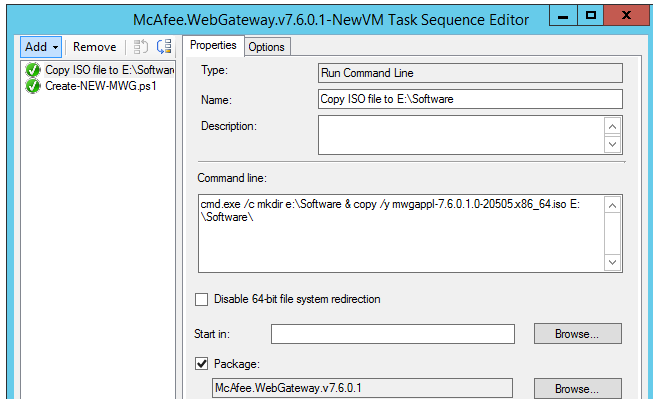
The copy step uses this command:

Code1 line
1
cmd.exe /c mkdir e:\Software & copy /y mwgappl-7.6.0.1.0-20505.x86_64.iso E:\Software\

SCCM-tasksequence-copy

Add a PowerShell step to run the PS1 script:
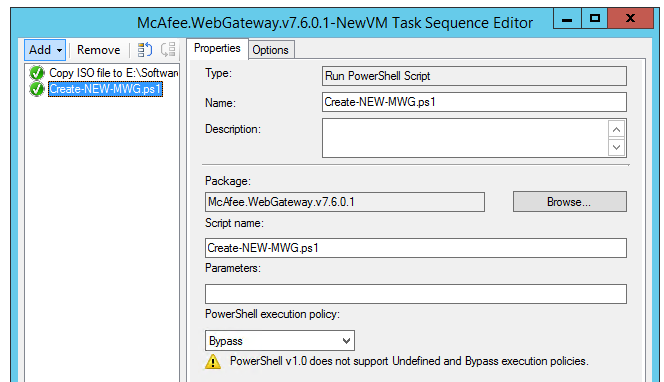
SCCM-tasksequence-powershell

The package was replicated to the remote distribution points. A collection of the target Hyper-V hosts was created, and a required deployment was added for the task sequence.

The deployment ran successfully, and SCCM and PowerShell created the remote VM appliances. I could reuse the script for future deployments.

In the next post, I will cover the migration and finish the Web Gateway deployment on Hyper-V.