Software deployment: Configure Dell Data Protection Access
Installing Dell Data Protection Access is straightforward. The challenge is configuring the application with the settings needed for a deployment. It is one of the additional system tools available for high-end Dell models, adding security and authentication features.
The installation supports silent, unattended mode: setup.exe -install -silent. My deployment required two reboots. The first installation run installed the drivers. After a reboot, the installation ran again. Following the second reboot, the Dell Data Protection Access shortcut was available in the Start menu. I am using Microsoft ConfigMgr 2007 (SCCM) with Windows 7 Enterprise clients.
My goal was to automate the installation and configure all required settings in the background, leaving the application ready for end users. Dell Secure Login should be enabled after installation, as shown below.

Dell Secure Login
The option to replace the standard Windows ctrl-alt-delete screen enables you to use different factors of authentication instead of (or in addition to) the Windows password for access to Windows. You can choose to add a fingerprint as a second factor of authentication in order to strengthen the security of the Windows login process. Additional factors of authentication can also be added for logging into Windows, including a smartcard or TPM certificate.
I could not find information in the installation files or online about configuring fingerprint and password logon options during installation. The settings were available in the general options, but I could not find installation parameters or an optional configuration file. By default, Dell Data Protection Access runs in password-only mode, leaving the logon experience unchanged.
Welcome screen
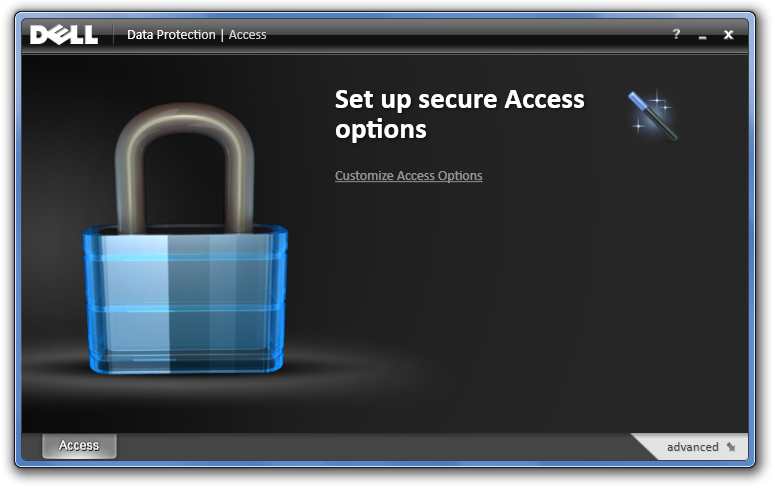
Customize access options
These are the default access options:
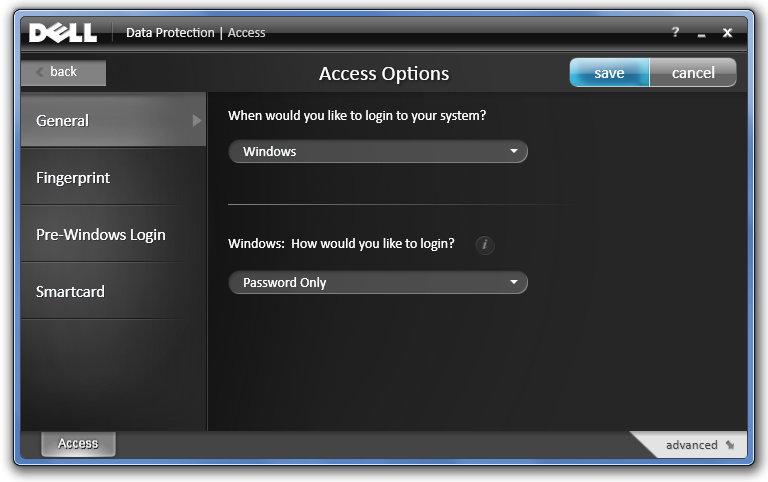
The following choices are available under “Windows: How would you like to login?”
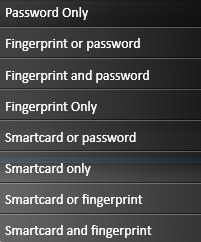
“Password Only” is selected by default. There are no installation options to select one of the other choices. These settings can be changed manually on each workstation, but an enterprise deployment often needs to apply them through a script or Group Policy.
Configure the registry settings
The settings are stored in the Windows registry at HKEY_LOCAL_MACHINE\SOFTWARE\Wave Systems Corp.\Authentication Manager. Two settings are required:
HKEY_LOCAL_MACHINE\SOFTWARE\Wave Systems Corp.\Authentication Manager\Enable Wave Secure Login: set theREG_DWORDvalue to1.HKEY_LOCAL_MACHINE\SOFTWARE\Wave Systems Corp.\Authentication Manager\LogonPolicy: set theREG_SZvalue to one of the options below. I usePWD | BIOto allow a fingerprint or a password.
These options are available with a fingerprint reader:
- Password only: the default, with no additional registry setting.
- Fingerprint or password:
PWD | BIO. - Fingerprint and password:
PWD & BIO. - Fingerprint only:
BIO.
I did not have a smartcard to test the remaining options. After applying these two settings, reboot the computer to make the new logon screen available. User communication and training should be part of the rollout.
I will use these two commands to enable the settings after installation:
| |
Either a fingerprint or a password can now be used to log on. Managing fingerprints does not require much effort or user training.